

How I Rolled Out GS1 Barcodes Across 4,000+ WooCommerce Variations (in a warehouse that had never used barcodes)
Here’s exactly how I introduced GS1 barcodes, printable labels and mobile scanning for over 4,000 product variations.

The outcomes (TL;DR)
- Every sellable variation got a unique GS1-issued GTIN (EAN-13).
- My team scanned with phones to pick orders and adjust inventory.
- I batch-printed labels on a GoDEX RT230i via GoLabel, driven by a spreadsheet.
- I could share product data to Verified by GS1 so marketplaces/retailers could trust the GTINs.
What I used
- WooCommerce barcode & mobile scanning: Barcode Scanner (+Mobile App) (paid plan for the features I needed).
- Bulk product import/export: WebToffee Product Import Export for WooCommerce (Pro) — cleanly moves thousands of rows, including hidden/custom “Barcode” meta.
- GTIN allocation & publishing: GS1 UK (My Numberbank) + Verified by GS1.
- Printer & software: GoDEX RT230i + GoLabel (free) for variable-data label printing from CSV/XLSX.

Why GS1 (and why it mattered to me)
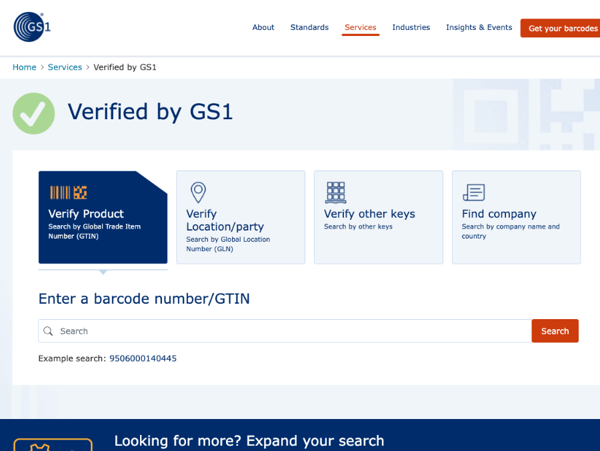
Barcodes aren’t just pictures; the GTIN behind them is the identity that marketplaces and retailers check. By getting my numbers from GS1, those GTINs were tied to our company in the GS1 Registry Platform. When I later published to Verified by GS1, partners could validate the data against the registry — which cut down on listing rejections and code disputes. When I needed to sanity-check digits, I leaned on the official GS1 check digit calculator.
Step-by-step: what I actually did
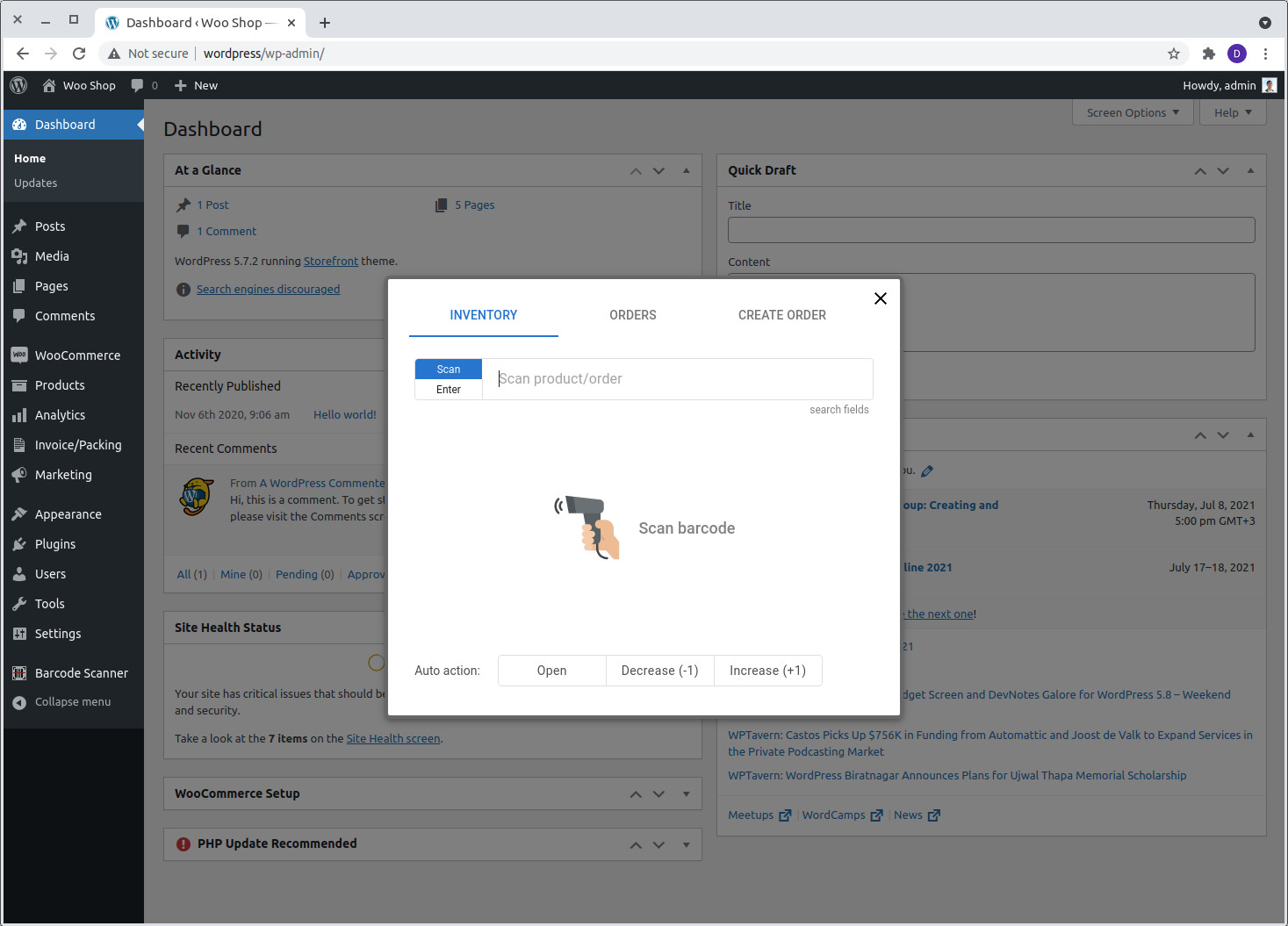
1) I installed the WooCommerce barcode/scanning stack
I went with Barcode Scanner (+Mobile App) and activated the paid plan for fast barcode search, order picking, and the iOS/Android apps. It let my team search by barcode/SKU/ID and update orders or stock without living at a desk.
2) I pulled a clean export with a column ready for barcodes
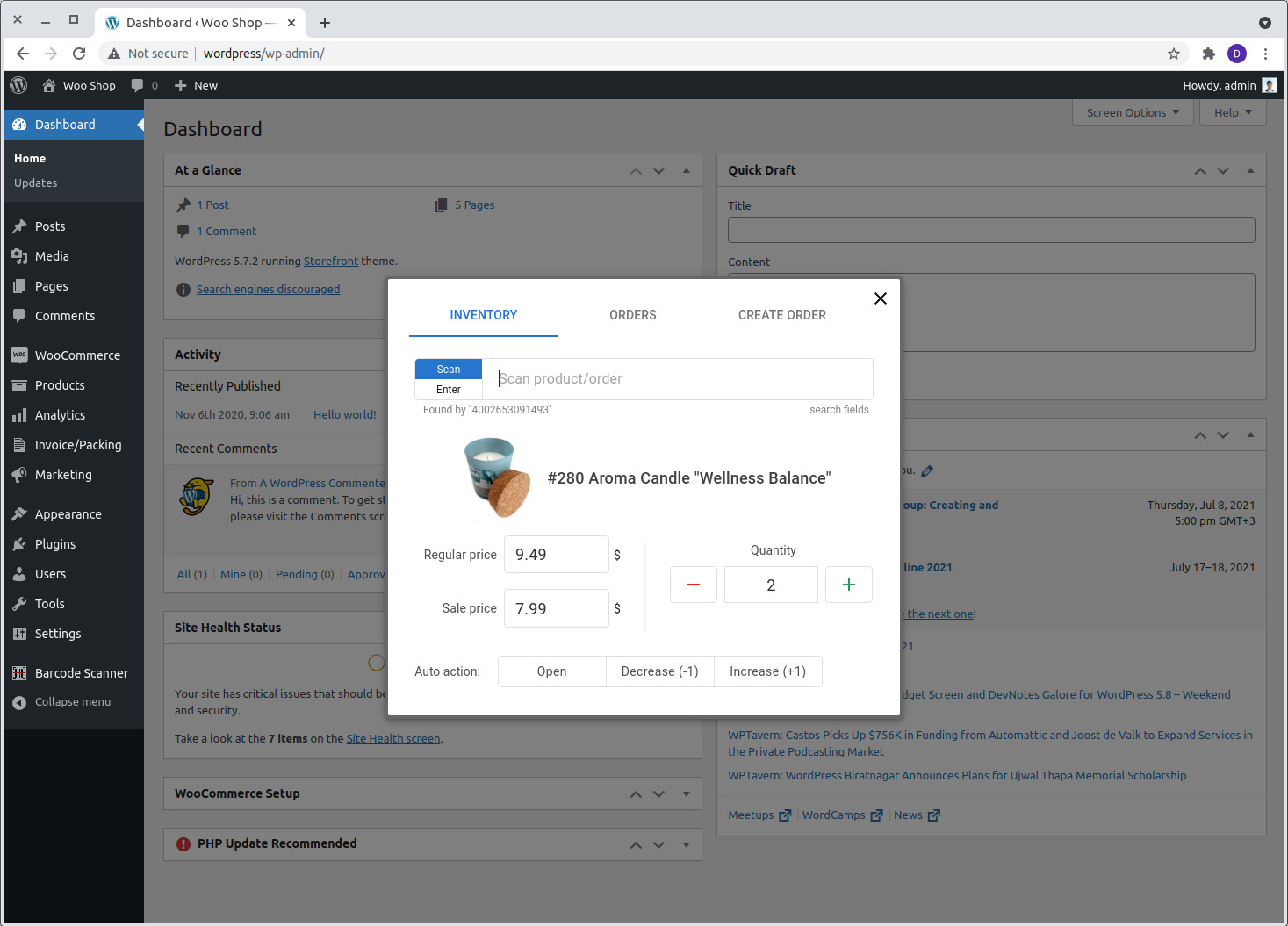
Using WebToffee Product Import Export (Pro), I exported Product ID, Product Name (sorted A→Z for sanity), and the “Barcode” field created by the scanning plugin (empty at first). WebToffee conveniently exposes third-party custom fields under Hidden meta, so I could map them on import.
3) I joined GS1 UK and allocated GTINs in My Numberbank
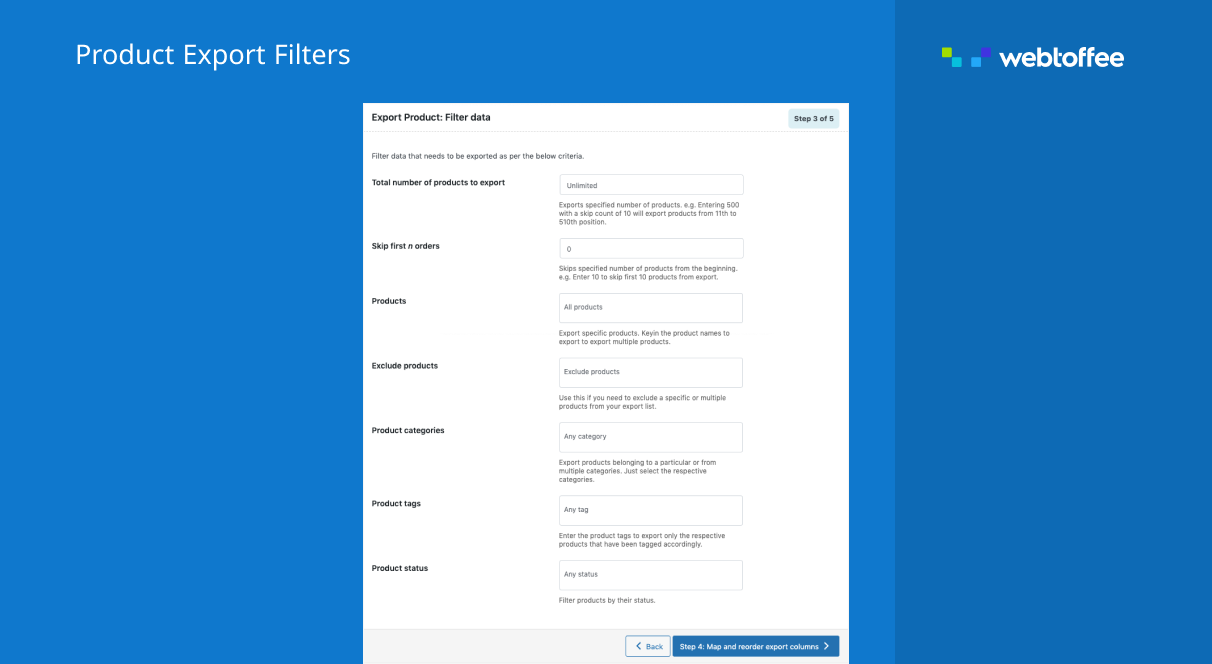
My client became a GS1 UK member and I used My Numberbank to allocate GTINs (one per variation). Numberbank’s export/import meant I could work comfortably in Sheets/Excel, then publish to Verified by GS1 when we were ready.
4) I built the master spreadsheet
I exported our GTIN list from GS1, pasted in product names from the WooCommerce export, added attributes (e.g., country of origin), and copied each GTIN into the WooCommerce “Barcode” column. Then I imported back to both places — GS1 (to keep Numberbank/Verified aligned) and WooCommerce (mapping the GTIN to the plugin’s Barcode field under Hidden meta).
5) I set up label printing (GoDEX RT230i + GoLabel)
I installed the Windows driver and GoLabel. In GoLabel I designed the label once: added an EAN-13 barcode object for the GTIN-13 and a text field for the product name, then bound both to my spreadsheet columns (Database → Text/CSV/Excel). A quick test print and gap calibration on the RT230i and I was in business.

Designing once saved me hours
- New label → set exact label size (width/height & gap).
- Add EAN-13 object (for GTIN-13) + product name text block.
- Database → connect to CSV/XLSX → preview rows.
- Bind barcode to GTIN column and text to Product Name.
- Test run → if gaps misread, run a quick front-panel calibration.
Gotchas I hit (and fixed): set the GTIN column format to Text (to avoid dropped leading zeroes), keep generous quiet zones, and tweak darkness/speed in the driver instead of shrinking the code.
6) I applied labels & trained the team
We labeled every sellable unit and I wrote a one-pager SOP on where the label goes per pack style (no wrinkles across bars!).
7) I went mobile for picking & stock
Using the plugin’s mobile app, staff scanned with phone cameras, pulled up the product instantly, and updated inventory or picked in “Order Fulfilment” mode. That took the pressure off the desktop and sped everything up.
Results after rollout
- Faster, cleaner picks with fewer errors.
- Stock takes in minutes — walk the aisle and scan.
- Marketplace listings behaved: GTINs were brand-owned and verifiable via GS1.
Common pitfalls I ran into (and how I dodged them)
Mismatched rows when merging spreadsheets: I kept a stable Product ID column and sorted both sheets the same way before copying.
Spreadsheet “smartness”: I forced the GTIN column to Text; never let it become 1.234E+12.
Printer alignment: If the gap sensor got confused, I ran Calibrate/Feed on the RT230i and double-checked the label size in GoLabel.
Not publishing to Verified by GS1: If partners were going to check codes, I made sure to publish/share from My Numberbank so GTINs showed up in Verified by GS1.
Copy-and-paste checklist (what I ticked off)
- Install Barcode Scanner (+Mobile App); activate the plan you need.
- Export products with WebToffee Pro (ID, Name, Barcode).
- Join GS1 UK; allocate GTINs in My Numberbank.
- Fill the GS1 template; complete “Required for Verified by GS1” fields if you plan to publish.
- Import back to GS1 and publish/share to VbG.
- Copy GTINs into your WooCommerce export; import and map to the plugin’s Barcode field (Hidden meta).
- In GoLabel, bind barcode + name to your sheet and print a test run.
- Label stock, train staff, and switch to scan-first workflows with the mobile app.
Final thoughts
Barcoding a big WooCommerce catalogue felt daunting, but using GS1 as the source of truth, WebToffee for clean data moves, and a simple GoDEX/GoLabel setup, I went from “no barcodes” to fully scannable in days — not months. The real win wasn’t the labels; it was the operational discipline scanning brought to every pick, pack, and stock count.
If you want the exact GoLabel template or my WebToffee column mapping, say the word — I can share redacted versions you can drop straight in.
Useful links I leaned on
- Barcode Scanner (+Mobile App): WordPress.org
- WebToffee Product Import Export: WordPress.org
- GS1 UK — publish to Verified by GS1: guide
- Verified by GS1 (global): overview · search
- GS1 Check digit calculator: tool
- GoDEX RT230i: official page · downloads